# Learn the Layer Lab shop

This is a guided tour. You do not need any tools except a browser and a text editor (TextEdit, VS Code, Notepad, whatever you have).

Open `index.html` in the browser on one side of the screen and this file (or the code) on the other. Change something small, save, refresh. That loop is how people learn this stuff.

---

## 1. Three languages, one page

A website is usually three languages stacked on top of each other:

| Language | File(s) here | Metaphor | Question it answers |
|----------|--------------|----------|---------------------|
| **HTML** | `index.html` | Skeleton | What *is* on the page? |
| **CSS** | `css/styles.css` | Clothes | What does it *look like*? |
| **JavaScript** | `js/*.js` | Muscles | What does it *do* when I click? |

HTML cannot remember a shopping cart. CSS cannot send email. JavaScript cannot draw a pretty layout by itself. They split the work.

When you see a line like this in HTML:

```html
<link rel="stylesheet" href="css/styles.css">
```

that is HTML *inviting CSS in*.

When you see:

```html
<script src="js/app.js"></script>
```

that is HTML *inviting JavaScript in*. The browser reads `index.html` from top to bottom, and those tags are how the other files get loaded.

---

## 2. HTML in 10 minutes

HTML is tags. Most tags come in pairs:

```html
<h1>Objects, layer by layer.</h1>
```

- `<h1>` opens
- `</h1>` closes
- the words in the middle are what the visitor sees

Some tags are empty (no close tag) because they do not wrap text:

```html
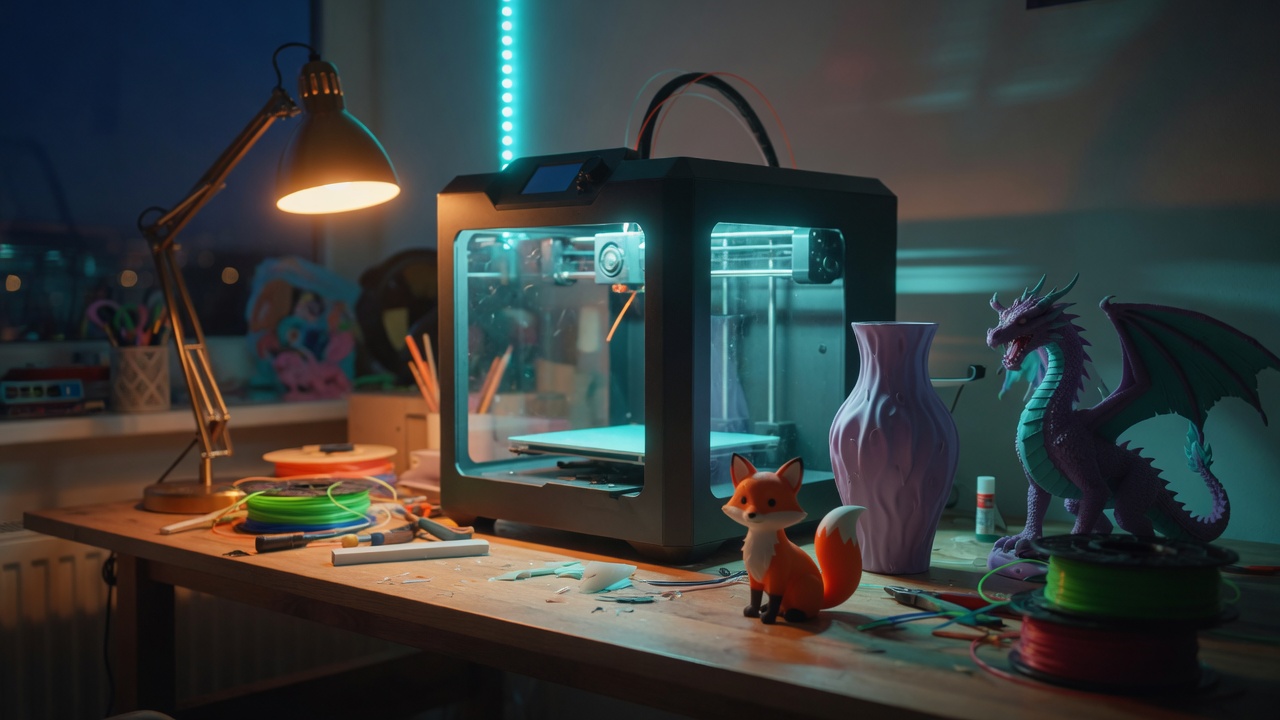
<img src="images/hero.jpg" alt="A 3D printer on a desk">
<input id="search-input" type="search">
```

### Attributes

The extra bits inside a tag are **attributes**. They are `name="value"`.

```html
<a class="btn btn-primary" href="#shop">Browse prints</a>
```

- `href="#shop"` — jump to the element whose `id` is `shop`
- `class="btn btn-primary"` — labels this link so CSS can style it. One element can have several classes, separated by spaces.

`id` is unique. There should be only one `id="shop"` on the whole page. `class` can be reused: every product card has `class="card"`.

### The landmarks in this site

Scroll `index.html` and you will see tags that describe *regions*, not just text:

- `<header>` — top bar with the logo
- `<nav>` — the Shop / FAQ links
- `<main>` — the real content
- `<section>` — one chunk of the page (hero, how it works, shop, FAQ)
- `<footer>` — the bottom line
- `<form>` — the checkout fields
- `<button>` — something that does a thing (open cart, add to cart)

Those names are not required for the page to work. We use them because they make the code readable, and because screen readers can skip around by landmark.

### A trick you will see a lot: empty boxes JavaScript fills

```html
<div class="product-grid" id="product-grid"></div>
```

There are no product cards typed in the HTML. JavaScript finds `#product-grid` and pours cards into it. Same idea for the cart (`#cart-lines`) and the category buttons (`#category-buttons`).

That is why adding a print does **not** mean editing `index.html`.

### The `#` jump links

```html
<a href="#shop">Shop</a>
...
<section id="shop">
```

`href="#shop"` scrolls to `id="shop"`. That is all the navigation on this site. No extra pages.

---

## 3. CSS: how the shop gets its look

Open `css/styles.css`. At the top is `:root { ... }`. Those `--names` are **custom properties** (people also call them CSS variables).

```css
:root {
  --cyan: #5eead4;
  --bg: #0b0f14;
}
```

Later the file can say `color: var(--cyan)` instead of repeating the hex code. Change `--cyan` once and buttons, links, and the logo tint all follow.

### A rule, decoded

```css
.card {
  background: var(--bg-card);
  border-radius: var(--radius);
}
```

- `.card` means "every HTML element whose class includes `card`"
- `{ }` holds the instructions
- `background` and `border-radius` are **properties**
- the bits after the colon are **values**

### Why some names start with `.` and some with `#`

| Selector | Matches |
|----------|---------|
| `header` | the `<header>` tag |
| `.card` | class="card" |
| `#shop` | id="shop" |
| `.btn.btn-primary` | an element that has **both** classes |

### Layout without tables

The product catalog is a **grid**:

```css
.product-grid {
  display: grid;
  grid-template-columns: repeat(4, 1fr);
  gap: 16px;
}
```

`1fr` means "one equal fraction of the leftover space." Four columns on a wide screen. Near the bottom of the CSS file, a `@media` query switches that to 2 columns, then 1, on smaller windows. That is **responsive design**: the same HTML, different CSS depending on screen width.

### The "layer lines" on the hero photo

The hero has a second layer, `.hero-shade`, with a repeating gradient that looks a bit like print layers. It is not a second image. It is CSS painted on top of the photo so the white title stays readable.

---

## 4. JavaScript: the part that is not HTML

If HTML is nouns ("a button", "a grid") JavaScript is verbs ("add this to the cart", "rebuild the grid").

This shop uses **vanilla JavaScript** — no React, no jQuery, no build step. What you see in the `js/` folder is what the browser runs.

### How the four JS files fit together

The bottom of `index.html` loads them **in order**:

```html
<script src="js/config.js"></script>
<script src="js/products.js"></script>
<script src="js/cart.js"></script>
<script src="js/app.js"></script>
```

Order matters. `cart.js` calls `getProductById`, which lives in `products.js`. If you reverse those two `<script>` tags, the cart would crash.

Think of it as:

1. **config.js** — settings (your email)
2. **products.js** — the catalog data
3. **cart.js** — add / remove / total
4. **app.js** — glue: listen for clicks and redraw the page

### Words you will keep seeing

**Variable** — a named box that holds a value.

```js
const CONFIG = { shopEmail: "your-email@example.com" };
let searchText = "";
```

- `const` means "this name will not be pointed at a different thing later"
- `let` means "this name may change" (the search box types new text all the time)

**Object** — a bundle of named facts, in `{ }`.

```js
{
  id: "low-poly-fox",
  name: "Low-Poly Fox",
  price: 18.00
}
```

`product.name` reads the name. The dot means "go inside the object."

**Array** — a list, in `[ ]`.

```js
const PRODUCTS = [ { ... }, { ... } ];
```

`PRODUCTS[0]` is the first product. `PRODUCTS.length` is how many there are. Computers count from zero.

**Function** — a named recipe you can run later.

```js
function formatMoney(amount) {
  return CONFIG.currencySymbol + amount.toFixed(2);
}
```

- `amount` is an **argument** — an input you hand in
- `return` is the output
- `.toFixed(2)` is a method that turns `18` into `"18.00"`

`formatMoney(18)` therefore becomes `"$18.00"`.

**String** — text in quotes: `"hello"`.  
**Number** — `18.00` with **no** quotes. If you write `price: "18.00"` the cart cannot do math reliably.

**Boolean** — `true` or `false`. Used for yes/no facts such as `featured: true` (show the Popular badge).

### The DOM

The **DOM** (Document Object Model) is the browser's live tree of the HTML. JavaScript does not "edit the .html file on disk." It reaches into the page that is already on screen.

```js
document.getElementById("product-grid")
```

means "find the element whose id is product-grid."

```js
grid.innerHTML = html;
```

means "replace everything inside that element with this HTML text." That is how product cards appear.

```js
button.addEventListener("click", openCart);
```

means "when this button is clicked, run the function `openCart`."  
`addEventListener` is the heartbeat of interactive pages.

### Event delegation (the clever click trick)

There might be twenty "Add to cart" buttons. Instead of wiring each one, `app.js` puts **one** listener on the whole grid:

```js
document.getElementById("product-grid").addEventListener("click", function (event) {
  const addBtn = event.target.closest("[data-add]");
  ...
});
```

- `event.target` is the exact thing you clicked (maybe the words inside the button)
- `.closest("[data-add]")` walks up until it finds an element with a `data-add` attribute
- that attribute holds the product id

`data-*` attributes are custom labels you invent. HTML does not care what they are named. JavaScript reads them with `getAttribute("data-add")`.

### localStorage — how the cart survives a refresh

Browsers give each website a tiny locker called `localStorage`. It only stores **strings**.

So `cart.js` does this dance:

1. Cart in memory is an array: `[{ id: "low-poly-fox", quantity: 2 }]`
2. `JSON.stringify(cart)` turns that into text
3. `localStorage.setItem("layer-lab-cart", text)` saves it
4. On the next visit, `JSON.parse(...)` turns the text back into an array

JSON is just a text format that looks a lot like JavaScript objects. That is the whole trick.

Open your browser's developer tools (right-click the page → Inspect → Application → Local Storage) and you can *see* the cart sitting there.

### Building the order email

`buildOrderText` in `app.js` is a function that concatenates lines:

```js
lines.push("Name:    " + form.name);
lines.push("- " + line.name + "  x" + line.quantity);
return lines.join("\n");
```

`join("\n")` glues the array together with line breaks. The result is a plain email body. No HTML in the email — on purpose, so it is easy to read on a phone.

Then one of two senders runs.

#### Path A — `mailto:` (default)

```js
const url = "mailto:" + CONFIG.shopEmail + "?subject=" + subject + "&body=" + body;
window.location.href = url;
```

A `mailto:` URL is not a website. The browser hands it to the computer's email app. `encodeURIComponent` turns spaces and line breaks into `%20` and `%0A` so the URL does not snap in half.

Limits you should know: very long carts can overflow what an email app will accept in a URL. That is why the success screen also offers Copy and Download.

#### Path B — Formspree (`fetch`)

```js
fetch("https://formspree.io/f/" + CONFIG.formspreeId, {
  method: "POST",
  headers: { "Content-Type": "application/json" },
  body: JSON.stringify(payload)
})
```

`fetch` is the browser function that talks to the internet. `POST` means "here is a package of data." Formspree receives the package and emails you. The page never learns your Gmail password, which is the point.

`.then` / `.catch` mean "when the answer comes back, do this; if it fails, do that." If Formspree errors, the shop falls back to `mailto:`.

### Why a static HTML file cannot "just send email"

Email sending requires a password or an API key. If that secret lived in `config.js`, anyone who views the page could steal it (right-click → View Source). So we either:

- let the *visitor's* email app send (mailto), or
- let a *third-party* service send (Formspree)

There is no secret in this folder that could be stolen. That is a feature.

### `preventDefault`

```js
function handleCheckoutSubmit(event) {
  event.preventDefault();
```

A `<form>` wants to reload the page when you press the submit button. That is leftover behavior from the 1990s. `preventDefault()` says "do not reload; I will handle this in JavaScript."

### `escapeHtml`

When we build card HTML from product names, we run the text through `escapeHtml` first. If a future product were named `Fox <Special>`, the `<` would otherwise look like the start of a tag and could break the page. Escaping turns `<` into `&lt;`, which displays as a less-than sign.

---

## 5. Add a 21st print, slowly

Imagine you printed a little owl.

1. Save a photo as `images/night-owl.jpg`
2. Open `js/products.js`
3. Find the last real product (`benchy-boat`). After its closing `}` put a **comma**
4. Paste a new object:

```js
{
  id: "night-owl",
  name: "Night Owl",
  price: 15.00,
  image: "images/night-owl.jpg",
  category: "Figurines",
  printTime: "4 hours",
  material: "PLA",
  color: "Blue",
  size: "8 cm tall",
  featured: false,
  description: "A small owl for a bookshelf."
}
```

5. Save. Refresh the browser. Search for "owl."

Common gotchas:

- Forgetting the comma between products. The whole catalog will fail to load. Open the browser console (View → Developer → JavaScript Console) and it will say `SyntaxError`.
- Using the same `id` twice. The cart would treat them as one item.
- Putting quotes around the price: `price: "15.00"` — stop. Use `price: 15.00`.
- The image path is relative to `index.html`, not relative to `products.js`. That is why it says `images/...` and not `../images/...`.

A new `category` string (say `"Jewelry"`) automatically grows a new filter button. `getCategories()` walks the list and collects unique names.

---

## 6. Change shop settings

`js/config.js`:

| Key | What it does |
|-----|----------------|
| `shopName` | Title used in emails |
| `shopEmail` | Where mailto sends |
| `formspreeId` | Optional; empty string means "use mailto" |
| `shippingFee` | Flat dollars added when the customer picks "Ship to me" |
| `taxRate` | `0.07` means 7%. `0` hides the tax line |
| `currencySymbol` | Printed in front of numbers |

After edits: save, then hard-refresh (Shift + Reload) so the browser does not keep an old copy of the JS.

---

## 7. The click path of one order

Say you add 2 foxes and 1 coaster, then check out.

1. You click **Add to cart**. The grid's listener reads `data-add="low-poly-fox"` and the quantity input.
2. `handleAdd` calls `addToCart("low-poly-fox", 2)` in `cart.js`.
3. `addToCart` loads the saved array, either bumps quantity or pushes a new `{ id, quantity }`, then saves it.
4. `renderCart` rebuilds the drawer HTML. `updateCartBadge` sets the orange number.
5. **Checkout** opens the form overlay.
6. You type a name and email. Pickup vs ship is a radio input named `fulfillment`. Choosing ship un-hides the address box and sets `required` on it.
7. **Place order** fires `submit`. `preventDefault` stops a reload.
8. `buildOrderText` walks the cart and your form fields.
9. Either `mailto:` opens, or `fetch` posts to Formspree.
10. `finishOrder` empties the cart, shows the success panel, and leaves a `.txt` copy on screen.

If you can follow those ten steps in the code, you understand the site.

---

## 8. Ideas you could add next (good practice)

Each of these is a small, contained change:

- A second currency format (you would mostly touch `formatMoney`)
- A "clear cart" button in the drawer
- Marking a product `featured: true` already shows a badge — try flipping a few
- A second HTML page (`about.html`) linked from the header
- Swapping the color variables in `:root` to make a light theme

Avoid jumping to React or a database until this version feels boring. Boredom is the signal you are ready.

---

## 9. Mini glossary

| Term | Meaning |
|------|---------|
| Tag | An HTML instruction such as `<p>` |
| Attribute | A setting on a tag, `class="card"` |
| Selector | The part of CSS that picks targets, `.card` |
| Property | A CSS setting, `color` |
| Variable | A named value in JavaScript |
| Function | A reusable recipe |
| Argument / parameter | Input to a function |
| Array | An ordered list `[ ]` |
| Object | A named bundle `{ }` |
| DOM | The live HTML tree in the browser |
| Event | Something that happened: click, submit, keydown |
| Listener | A function that runs when an event happens |
| JSON | Text version of objects/arrays |
| localStorage | Browser locker for strings |
| `mailto:` | URL that opens an email app |
| `fetch` | Function that sends HTTP requests |

---

## 10. If something breaks

1. Save all files.
2. Refresh.
3. Open the JavaScript console. Red text is the browser telling you the line that failed.
4. Missing comma in `products.js` is the #1 beginner outage.
5. Wrong image path shows a broken-image icon; the rest of the shop still works.

You cannot ruin this project by editing it. Keep a copy of the folder if you want a safety net, then experiment.